
Custom Prompts
When you switch from Preset Prompts to Custom Prompts, Blaze Puppeteer requests remote text embeddings for the typed prompt and then continues with local generation on your machine.
An account is optional until you need Custom Prompts, Motion Refinement, or account actions such as refreshing credits and opening the purchase flow.
Custom Prompts
When you switch from Preset Prompts to Custom Prompts, Blaze Puppeteer requests remote text embeddings for the typed prompt and then continues with local generation on your machine.
Motion Refinement
Variation, Extend/Shorten, and Loop work from a selected History motion. They process that selected motion only.
Credits And Browser Flows
The account bar lets you sign in, create an account, refresh credits, add credits, open Help, open Support, and log out.
| Capability | Without login | With login |
|---|---|---|
| Local preset generation | Yes | Yes |
| Custom Prompts | No | Yes |
| Motion Refinement | No | Yes |
| Credit display and refresh | No | Yes |
| Browser signup and add-credits flow | Optional | Yes |
The account bar sits at the top of Motion mode.
When you are signed out, the account bar shows:

When you are signed in, the account bar shows:
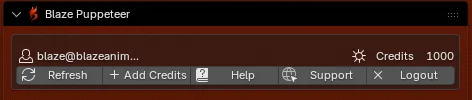
If you sign out while Custom Prompts is active, Blaze Puppeteer returns the prompt mode to Preset Prompts.
Blaze Puppeteer does not ask for your password inside Blender. Login opens in your default browser and Blender waits for the session to return.
In the Motion panel, click Login from the account bar.
Complete the website flow in the browser window that opens.
Once the session is confirmed, the account bar updates automatically.
These actions use the same browser-first pattern:
These stay on your machine in the normal preset-driven workflow:
_Blazed and _TPOSE helper rigsBlaze Puppeteer only sends data when you use features that require your account, such as:
Blaze Puppeteer saves the returned sign-in session on your machine where the operating system supports it.
Check these first:
If the session still does not appear, continue with Troubleshooting.