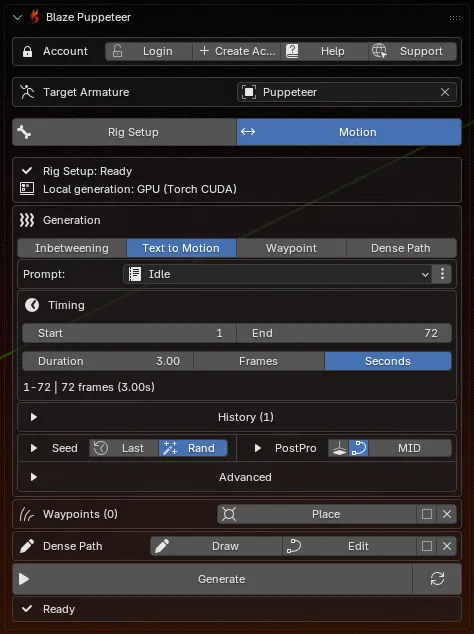
Prepare Once
Install the extension, choose the panel location you want, and let Blaze Puppeteer install the bundled runtime automatically. Nothing else in Motion mode matters until the local runtime is ready.
Use this page to confirm the core workflow end to end: install the extension, let the bundled runtime install automatically, map one rig, and generate a first motion with Preset Prompts.
Prepare Once
Install the extension, choose the panel location you want, and let Blaze Puppeteer install the bundled runtime automatically. Nothing else in Motion mode matters until the local runtime is ready.
Map Once Per Character
Rig Setup is a character-specific pass. Once the chain lists, root decision, and T-pose are correct, you normally only revisit it when the rig changes.
Review Per Generation
Generate, compare results in History, then keep the best result, retry, or clean it up with PostPro.
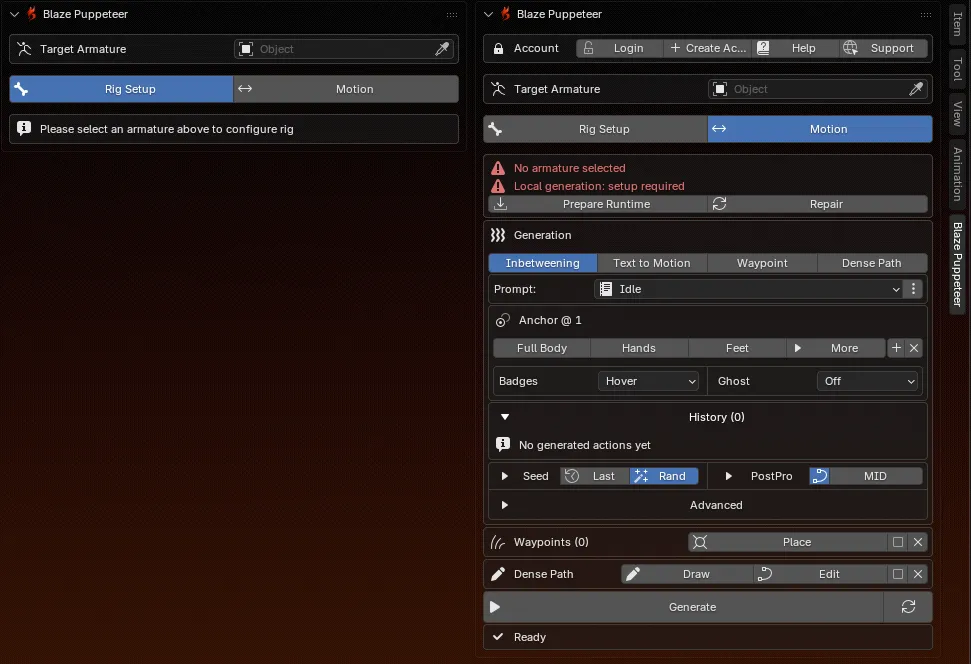
This is the shortest route to a first result and the clearest way to confirm that both your machine and your rig are ready.
Follow Installation and confirm the Blaze Puppeteer panel is visible in Blender.
After installation, wait until the readiness area shows a usable Local generation: label such as GPU (Torch CUDA) or CPU (Torch).
Switch to Rig Setup, choose the correct Target Armature, fill the five body chains, choose Root Controller or No Root Controller, and click Reconstruct.
On the generated _TPOSE helper rig, use Confirm Front View, then switch to the top check and use Finalize T-Pose.
Switch to Motion, stay on Preset Prompts, choose a preset, choose the task you want to test, add only the guides that task needs, and click Generate.
Review the result in History. If the generated motion is close, open PostPro for root extraction or unbaking. If it is not close, change the setup and generate again.
An account is helpful when you want:
If you plan to stay on Preset Prompts, you do not need to sign in.
See Account & Remote Features for the full login and data-boundary guide.
Before you judge the result, confirm these basics: