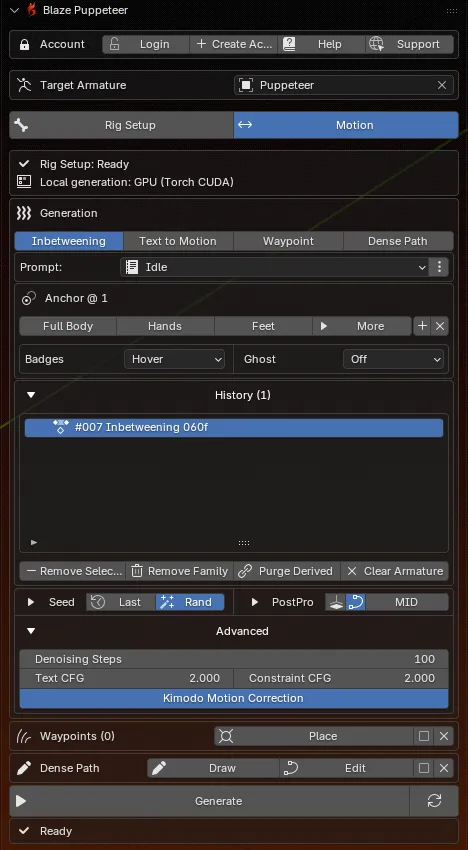
Account Bar
Handles login, credits, Help, Support, and Logout. If you are signed in, this is also where you refresh or add credits.
The Motion tab is where you set prompts, add guides, generate motion, review History, and optionally run Motion Refinement or PostPro.
Account Bar
Handles login, credits, Help, Support, and Logout. If you are signed in, this is also where you refresh or add credits.
Target Armature And Readiness
Choose the character in Target Armature, then read the two readiness lines: one for Rig Setup and one for Local generation.
Generation Box
This is where you choose the prompt mode, task, timing, anchors, History, Motion Refinement, Seed, PostPro, and Advanced settings.
Trajectory Tools And Actions
Waypoints, Dense Path, Generate, Retry, and the bottom status line live below the main generation box.
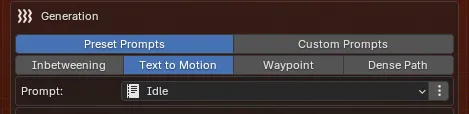
Preset Prompts is the default local mode:
The dropdown shows the preset label. Blaze Puppeteer also resolves the full preset text internally for generation.
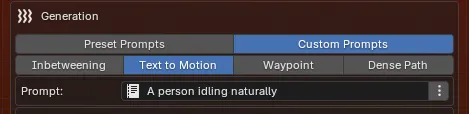
Custom Prompts is for typed text:
Keep the wording direct and action-focused. Empty text is not valid.
| Task | Best for | Main setup |
|---|---|---|
| Inbetweening | Filling motion between blocked poses | Anchors + Prompt |
| Text to Motion | Starting a new clip from a prompt | Prompt + timing |
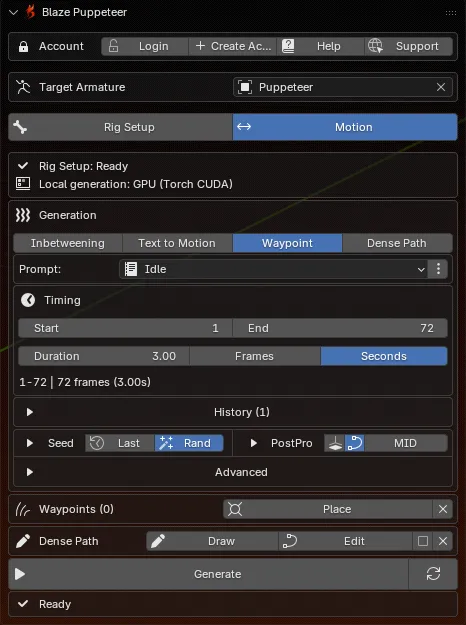
| Waypoint | Hitting clear trajectory points on specific frames | Waypoints + timing |
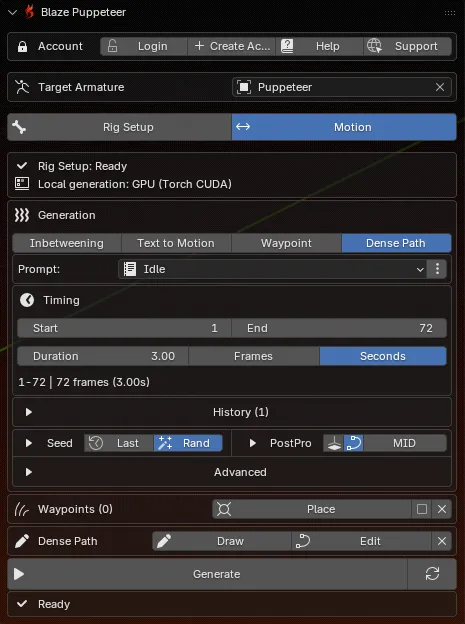
| Dense Path | Following a designed trajectory through the scene | Dense Path + timing |
For Text to Motion, Waypoint, and Dense Path, the panel shows a Timing box with Start, End, Duration, and the Frames / Seconds toggle.
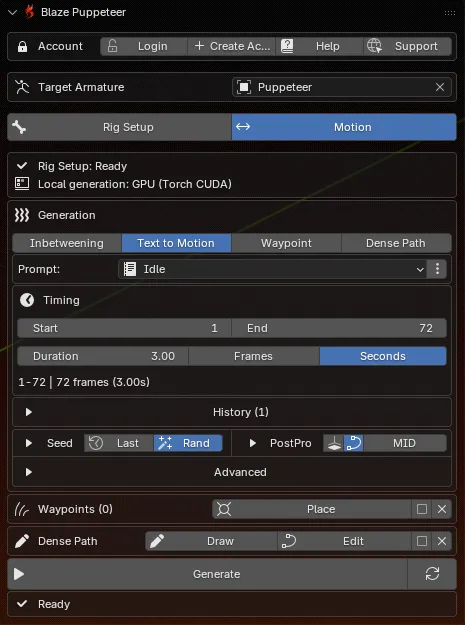
Use Text to Motion when you want to start a new clip from a preset or custom prompt.
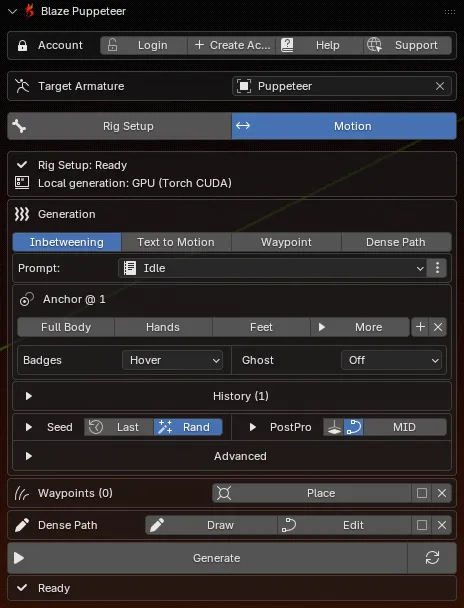
Use Inbetweening when you want to block important poses and let Blaze Puppeteer fill the motion between them.
Anchors are the guide poses Blaze Puppeteer actually uses during inbetweening. Regular keyframes do not become anchors until you mark them.
| Anchor scope | What it constrains |
|---|---|
| Full Body | The full pose at that frame |
| Hands | Both hands end effector poses |
| Feet | Both feet end effector poses |
| More | Individual left or right hand and foot selection |
The anchor editor also includes:
| Control | Modes | What it helps you read |
|---|---|---|
| Badges | Off, Bars Only, Current, Hover, Always | Shows anchor indicators in timeline/dope sheet/graph editor/nla editor. Use it to see where anchors exist without opening the anchor editor on every frame. |
| Ghost | Off, Current, Window, All | Draws anchor pose ghosts in the 3D viewport so you can compare the current pose against stored anchored poses. Window uses the Window frame value to limit nearby ghosts. |

| Shortcut | Context | What it does |
|---|---|---|
F | Object Mode, Pose Mode, Dope Sheet, Graph Editor, NLA, Sequencer | Toggle the current-frame anchor using the active anchor scope |
D | Object Mode, Pose Mode, Dope Sheet, Graph Editor, NLA | Create or remove a manual hands-and-feet anchor |
In the Sequencer, D is reserved for prompt strips instead of manual anchors.
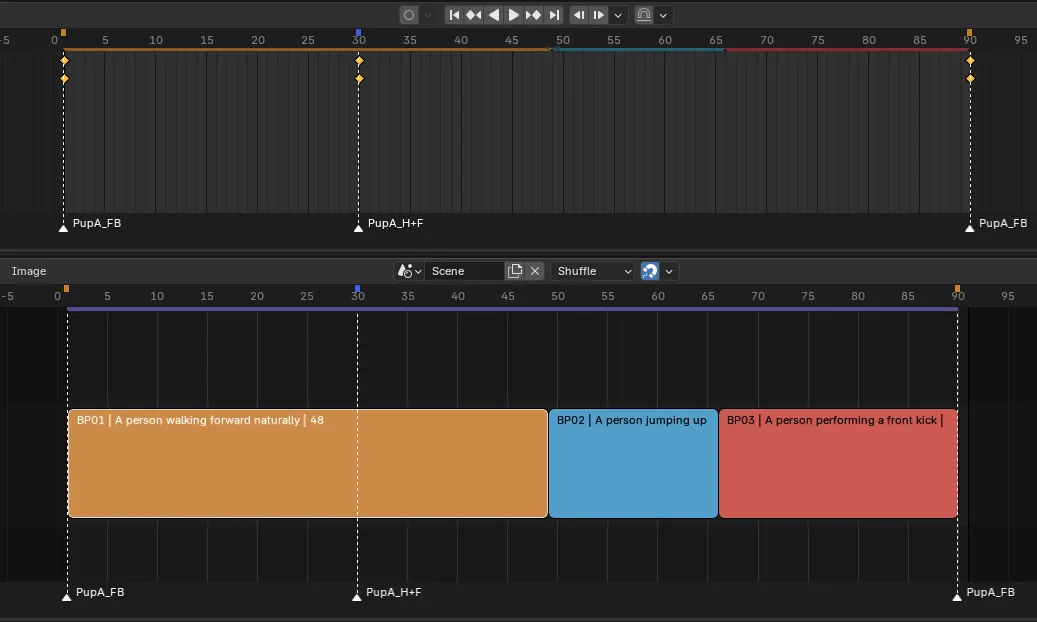
Prompt Sequencer turns one prompt into timed prompt segments across the generated motion range.
Click the three-dot toggle next to the prompt field.
Click Prompt Sequencer to open or focus a Sequencer area.
In the Sequencer:
D to create a Blaze Puppeteer prompt strip at the current frameE to edit the prompt text at the current frameMove or trim the strips with normal Sequencer tools. Turn on Color Bands if you want clearer strip feedback in timeline editors.
In Preset Prompts mode, each strip stores a preset choice. In Custom Prompts mode, each strip stores typed text.
Color Bands adds colored strip markers to timeline/dope sheet/graph editor/nla editors so you can check the ranges of prompt strips without staying inside the Sequencer. It is a visual overlay only.
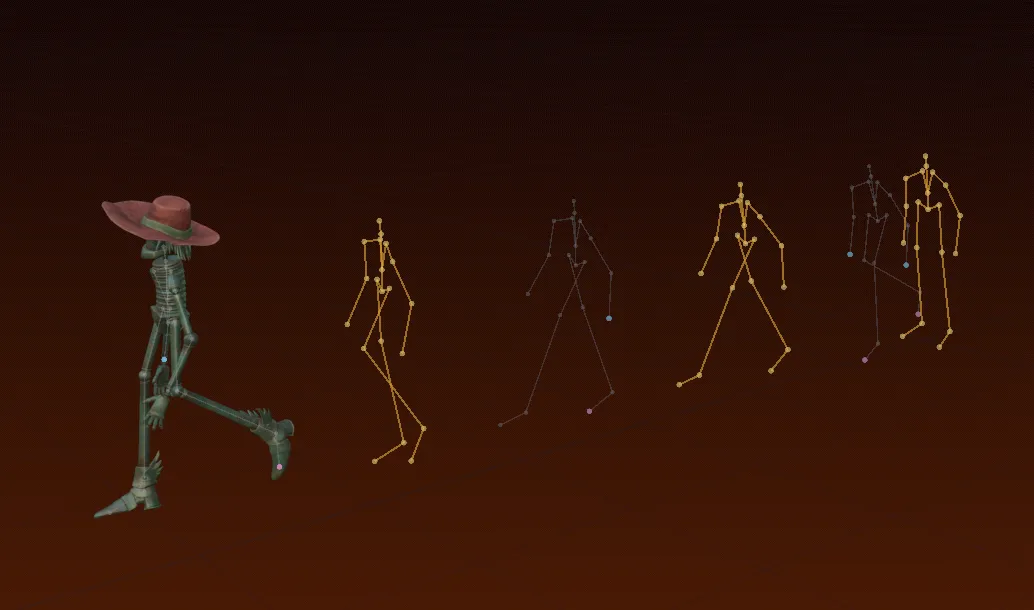
Waypoints are frame-specific trajectory points (Empties) on the ground plane.
Esc to leave placement mode.Dense Path is for continuous trajectory design instead of discrete trajectory points.
Click Draw.
Draw in the viewport with the Annotation tool Blaze Puppeteer activates for this mode.
Right-click or press Esc to finish and convert the stroke into an editable curve.
Use Edit to adjust the curve.
When Dense Path is not the active task, check the Use Dense Path checkbox if you want the trajectory curve layered onto another task.
Every generated motion is stored in History as actions.
| Action | What it does |
|---|---|
| Remove Selected | Removes only the selected History entry |
| Remove Family | Removes the selected root generation and its derived children |
| Purge Derived | Removes retries and refinements under the selected generation |
| Clear Armature | Removes all generated History for the current armature |
Motion Refinement only appears when:
Available refinement modes:
| Mode | What it does |
|---|---|
| Variation | Requests alternate versions of the selected source motion |
| Extend/Shorten | Fits the selected source motion to a new duration |
| Loop | Makes the selected source motion loop |
Variation uses Variant Count. Extend/Shorten uses a target duration in Frames or Seconds.
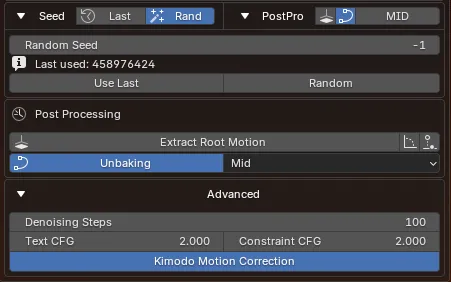
Below History, Blaze Puppeteer exposes three smaller control areas:
| Section | What it is for |
|---|---|
| Seed | Controls repeatability. Use Use Last to restore the last effective seed, or Random for a fresh variation. |
| PostPro | Gives quick access to root extraction and unbaking. The PostPro settings that are active when you run Generate, Retry, or Motion Refinement are applied to the newly created motion automatically. |
| Advanced | Exposes local Kimodo controls such as Denoising Steps, Text CFG, Constraint CFG, and Kimodo Motion Correction. |
Once a motion exists in History, selecting it restores that motion’s saved PostPro state. The cleanup stays non-destructive, so you can turn options off or adjust them later and Blaze Puppeteer will reprocess or restore the result.
Use Post-Processing for the deeper explanation of what those cleanup options do.
Confirm these four things:
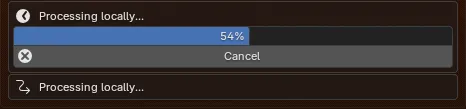
During generation, the bottom of the panel switches to a progress report so you can see whether Blaze Puppeteer is preparing, processing, or finalizing the result.