
Fit Ground
Moves the plane under the character’s lowest foot and updates which feet are in contact.
Use Preserve Foot Contact to treat supporting feet as planted while you pose. Contact is soft, so a foot can still slide or lift slightly as the rest of the body adjusts.
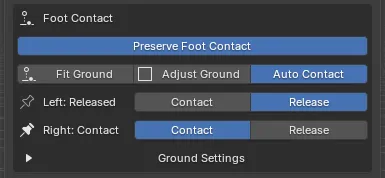
Enable Preserve Foot Contact, then press Fit Ground. The ground plane aligns to the lowest foot and the contact states update.
Confirm that the supporting foot reads Contact. Use the manual Contact or Release buttons when needed.
Drag the upper body around. AutoPose considers the supporting foot planted, but it can still move slightly as the rest of the pose adapts.
| Control | What it does |
|---|---|
| Preserve Foot Contact | Uses touching feet as soft support constraints unless their ankle or toe is moved |
| Fit Ground | Moves the ground plane to the lowest foot and updates which feet are in contact |
| Adjust Ground | Shows a movable plane you drag by its blue Z axis, then press Finish Adjust |
| Auto Contact | Re-evaluates a foot’s contact automatically when you finish dragging it |
You can set the ground plane in three ways.
Fit Ground
Moves the plane under the character’s lowest foot and updates which feet are in contact.
Adjust Ground
Shows the plane in the viewport. Drag its blue Z axis to set the height, then press Finish Adjust.
Ground Height
Enter the plane’s world-space height directly under Ground Settings. Use this when you already know the exact value.
With Preserve Foot Contact on, the panel shows a row for each foot with its current state.
| State | Means |
|---|---|
| Contact | This foot contributes ground support while you pose |
| Released | This foot does not contribute ground support |
Each row has Contact and Release buttons that override the state directly. Those buttons always work: they are not restricted by how far the foot happens to be from the plane, so you can plant a foot that is slightly off the ground or release one that is standing on it.
Changing a contact state does not re-solve the pose. The character stays exactly as it is; only what happens on the next drag changes.
Auto Contact is available whenever Preserve Foot Contact is on. With it enabled, AutoPose re-evaluates a foot when you finish dragging its ankle or toe: if it is close enough to the plane, it becomes planted; if you lift it away, it becomes released.
Your manual Contact and Release choices still work with Auto Contact on. It handles the obvious cases so you do not have to think about them, and gets out of the way when you make a decision explicitly.
Leave it off when you want full manual control over which foot is carrying weight, which is common for held or unstable poses.
Expand Ground Settings for the finer controls. Most poses never need them.
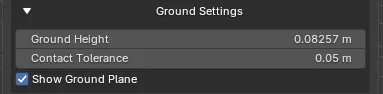
| Setting | What it controls |
|---|---|
| Ground Height | The world-space height of the plane. Type an exact value instead of dragging it |
| Contact Tolerance | How close a foot has to be to the plane to count as touching. Scaled to the character’s size |
| Show Ground Plane | Whether the plane is drawn during a session |