
Axis locks
X, Y, Z to lock an axis, twice for the local one, Shift plus an axis to exclude it.
AutoPose’s configurable bindings are under Preferences → Add-ons → Blaze AutoPose → Shortcuts. The defaults below also include Blender’s Alt + R and Alt + G reset shortcuts.
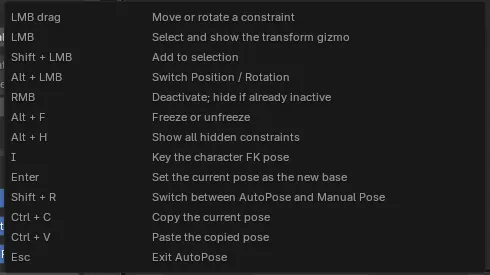
| Shortcut | Action |
|---|---|
| LMB drag | Move or rotate the constraint under the pointer |
| LMB click | Select and activate a constraint, then show its gizmo |
| Shift + LMB | Add a position constraint to the selection group |
| Alt + LMB | Switch the hovered constraint between position and rotation |
| RMB | Deactivate an active constraint, or hide it if it is already inactive |
| Alt + F | Freeze or unfreeze the hovered constraint |
| Alt + H | Show every hidden constraint |
| G | Use Position on the selected constraint and start Blender’s move tool |
| R | Use Rotation on the selected constraint and start Blender’s rotate tool |
| Alt + R | Reset rotation on the selected constraints’ mapped rig controls |
| Alt + G | Reset location on the selected constraints’ mapped rig controls |
| Shortcut | Action |
|---|---|
| Enter | Save the current pose as the Restore checkpoint and deactivate all constraints |
| I | Key the character’s FK pose at the current frame |
| Ctrl + C | Copy the complete AutoPose pose |
| Ctrl + V | Paste the copied pose and save it as the Restore checkpoint |
| Shortcut | Action |
|---|---|
| Shift + R | Switch between AutoPose and Manual Pose |
| Esc | Finish the AutoPose session, or stop a recording |
| Shortcut | Action |
|---|---|
| Ctrl + Z | Undo an AutoPose pose or state change |
| Ctrl + Shift + Z | Redo an AutoPose pose or state change |
Dragging a handle and using G or R support the same Blender transform controls:
Position constraints can be transformed as a selected group. Rotation and look-at controls are manipulated one at a time.
Axis locks
X, Y, Z to lock an axis, twice for the local one, Shift plus an axis to exclude it.
Numeric entry
Type a distance or an angle directly and press Enter.
Fine control
Hold Shift while moving for a slower, finer adjustment.
Cancel
RMB or Esc cancels the transform and puts the handle back.
Type a chord straight into the field in preferences. The accepted vocabulary is:
Combine them with +, one key or mouse button per shortcut. Alt+F, Ctrl+C, and I are all valid; Alt+F+G is not.
A field turns red when the chord cannot be read or when it collides with another AutoPose binding, and the message underneath names the conflict. Until you fix it, that action keeps its default, so a typo can never leave you without a way to perform it.
Restore Default Shortcuts resets every binding at once.